GlyphView
GlyphView 3.0
Introduction
GlyphView is a comprehensive utility created for software developers (especially those focused on Delphi VCL). Its main function is to facilitate finding, viewing, previewing and exporting graphic assets (icons, bitmaps, PNGs, etc.) used in application user interfaces.
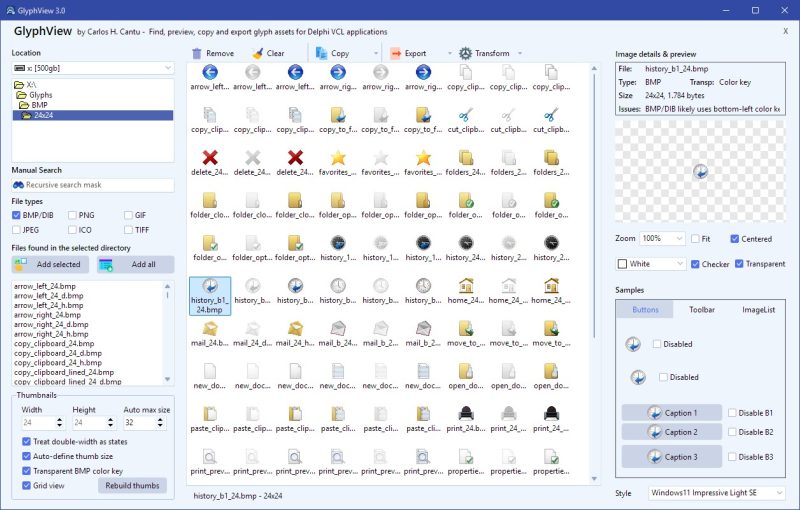
During development, it is common to need to test how an image will behave in different controls, themes, and states (such as enabled or disabled). GlyphView solves this problem by allowing the developer to scan directories for images, preview the behavior of these graphics in simulated real controls (buttons, toolbars, and image lists) under different VCL styles and export these ready-to-use images — with resolution variations (DPI), transformed states or resource scripts (RC).
How to Use
The application interface is divided into logical panels designed to optimize workflow. Below, we detail all the available options and their functions:
1. Left Panel (Search and Files)
- Location (Drives and Directories): A navigation tree that allows you to select the disk drive and folder containing your image assets.
- Manual Search (Recursive search mask): A field where you can type a search mask (e.g., *save*.png) to specifically and recursively search for files within the selected directory and its subfolders. You can use wildcards and specify a path different from the folder selected in the tree. Hit ENTER or click the binocular icon to start the search. Press the cancel button to interrupt the process which is composed by 3 steps: find the files, add them to memory list and to a listview.
- File types: Checkboxes to restrict results to the desired formats. Natively supports: BMP/DIB, PNG, GIF, JPEG, ICO, and TIFF.
- Files found… (Results List): Displays the list of images found after the search. You can select and add the files manually to the list view (use the popup menu to facilitate your work).
- Add selected: Transfers only the selected files from the results list to your Workspace (listview) in the center of the screen.
- Add all: Immediately transfers all files listed in the search to the Workspace.
2. Thumbnails (Thumbnail Settings – Bottom Left Corner)
- Width / Height: Numeric fields to manually set the exact width and height of the thumbnails in the central grid/listview.
- Auto max size: Defines a maximum size limit when automatic dimension identification is enabled, preventing very large images from breaking the grid.
- Treat double-width as states: When checked, images that have exactly twice the width relative to their height (a very common pattern in older Delphi button libraries) are treated by the application as containing two graphic states (e.g., normal and disabled) in the same image.
- Auto-define thumb size: The application ignores manual values and automatically adjusts the grid cell dimensions based on the size of the loaded images (respecting the maximum limit defined).
- Transparent BMP color key: Enables the detection of the bottom-left pixel of a BMP image to define the color that should be treated as transparent (VCL standard). In the old times, it was common to use fuchsia to represent a transparent background.
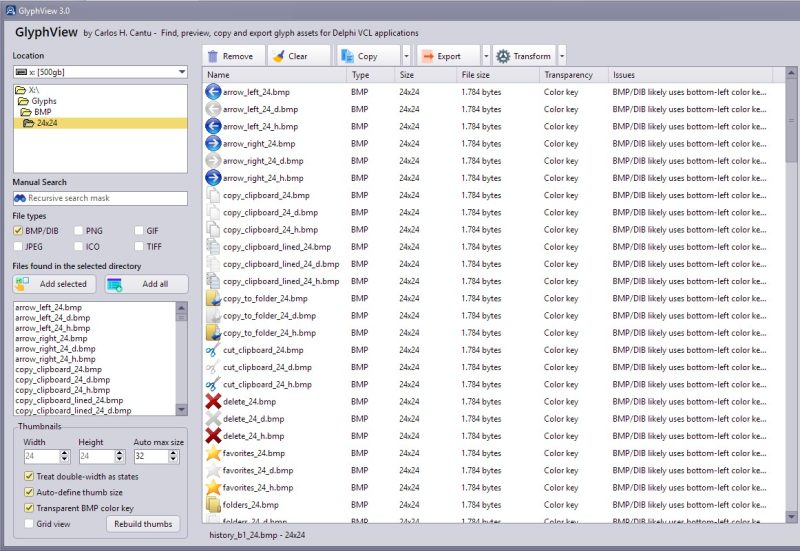
- Grid view: Toggles the central workspace area between a grid format (visual) and a detailed list format.
- Rebuild thumbs: A button to force the immediate recreation of all thumbnails in the grid using the settings you just changed.
3. Workspace and Tools (Center Panel)
- Main Grid: Displays all images (glyphs) added for analysis, showing the image and its respective file name among other information (when the list mode is being used).
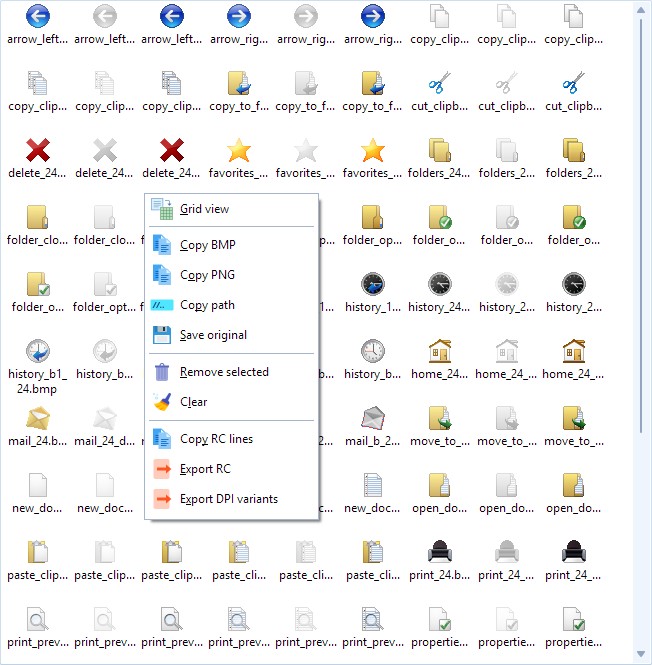
- Remove: Deletes the currently selected images in the grid from the workspace.
- Clear: Completely clears the workspace all at once (nothing is erased from disk).
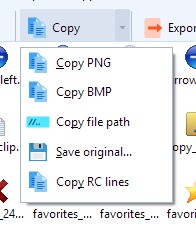
- Copy (Dropdown Menu): Clipboard tools. Allows you to copy the image itself as BMP or PNG, copy the absolute path of the file on the disk, or copy the corresponding code for a Resource Script (.rc), etc.
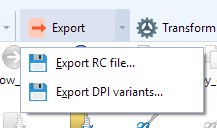
- Export (Dropdown Menu): Allows you to export a physical
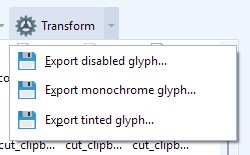
.rcfile consolidating all images present in the grid, or export the essential DPI Variants (automatically scaled variations of an image for use on High-DPI monitors). - Transform (Dropdown Menu): Manipulation tools that eliminate the need for external editors. Allows you to generate and save modified versions of the original image, such as monochromatic versions (Mono), tinted with other colors (Tint), or the actual disabled button effect (Disabled).
4. Image details & preview (Top Right Panel)
- Technical Details: Shows the file name (File), internal format (Type), transparency status (Transp), file size on disk (Size), and displays warnings in the Issues field if it detects structural anomalies in the image.
- Preview (Display Area): Shows the selected image in detail.
- Zoom / Fit / Centered: Controls that allow you to apply an exact zoom level, force the image to fit the visible screen (Fit), or just keep it centered.
- Background (Color / Checker / Transparent): Changes the background of the preview frame to the selected color, Checkerboard, or Transparent. Crucial for checking the edges of PNG images with an Alpha channel (semi-translucent transparency).
5. Samples and Styles (Bottom Right Panel)
- Sample Tabs (Buttons, Toolbar, ImageList): A visual laboratory for the developer. Simulates how the selected image will be rendered by the operating system within real VCL controls.
- Buttons: Displays buttons containing the icon in different “Caption” configurations. The Disable B1/B2/B3 or Disabled checkboxes let you instantly see if the disabled (grayed out) image remains readable.
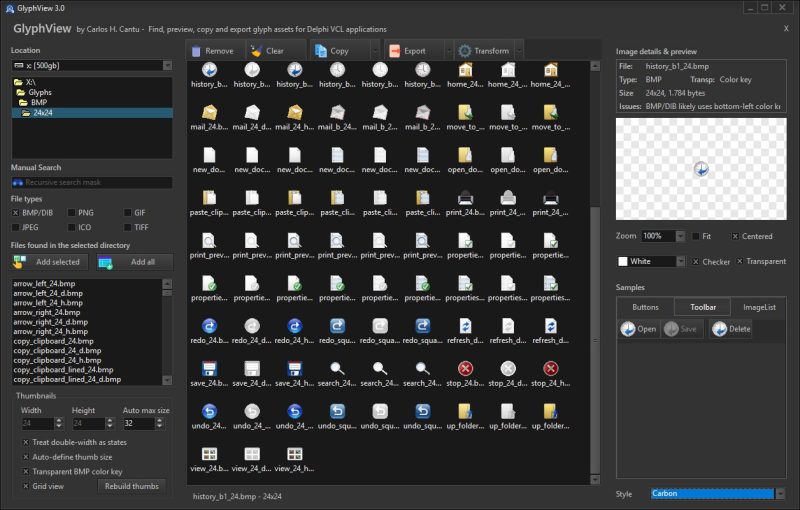
- Toolbar: Simulates the attached image as an action on a standard toolbar.
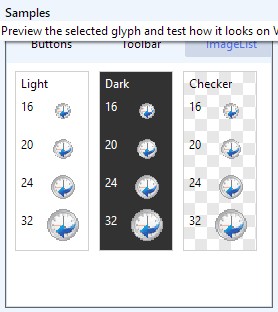
- ImageList: Shows the specific rendering behavior that occurs when the image is loaded into the memory of a TImageList component in different sizes and different backgrounds.
- Style: A list of installed VCL Styles (e.g., Windows 11 Impressive Light/Dark) to be used in GlyphView interface, also allowing you to validate if the icon aesthetically survives in both light and dark themes.
What’s New in Version 3
Version 3.0 is a massive refactoring of the original application, designed for the demands of modern development. It started as an experiment on using the new KAI A.I. plugin for Delphi with the ChatGPT 5.5 (high) model to analyze, refactor and enhance de original code, also adding new functionalities.
The list of what has been changed and added includes:
- Asynchronous Engine (Background Queue): The directory loading and image generation system has been entirely rewritten. It now uses a process queue and secondary threads, completely preventing the graphical interface from freezing when scanning folders with a large number of files.
- Extended Format Support: Added processing and support for previously unsupported extensions, notably JPEG, ICO, and TIFF, joining the already existing BMP and GIF, and perfectly supporting the alpha transparency of modern PNGs.
- New Transformation Tools (Transform): Internal capability to modify image pixels has been added. You can now generate and save monochrome, tinted, and disabled versions of images.
- Multi-Resolution Support (High-DPI): New Export DPI variants feature, allowing the developer to automate the creation of multiple icon sizes necessary to properly support 4K/High-DPI monitors.
- Autonomous Resource (.rc) Generation: GlyphView now structures, builds, and exports the
.rcfile, eliminating the need to manually type resource scripts. - Expanded Samples Panel: The new version isolates the preview in real virtual controls through the Buttons, Toolbar, and ImageList tabs, delivering 100% accurate validation.
- File Diagnostics (Issues): A new validation system that structurally evaluates the newly selected image and displays alerts in the Details panel and workspace hint if any irregularities are found.
- Advanced Thumbnail Settings: New algorithms to automatically read the internal size of the selected image and fluidly dimension the Workspace borders (Auto-define thumb size), in addition to the intelligence to automatically decipher legacy multi-state bitmaps (Treat double-width as states).
- Native Recursive Search: New tab and Manual Search bar that allows proactive searching of masks across folders and subfolders.
Download and installation
Download the compressed (7zip) file, decompress it into any folder of your hard drive, and run GlyphView.exe. To make things easier, you can also add the utility to the Tools menu of your Delphi IDE or any other programming language IDE of your choice.
==> Cick to Download <==
Attention: Glyph images are not included!
Did you like it?
Consider donating for supporting GlyphView development.
Screenshoots
Bugs?
Report any bugs to warmbooter in gmail.com

Um comentário
Deixe um comentário
Você precisa fazer o login para publicar um comentário.
Pingback: 5 Kai Projects Get First Giveaways in Summer Campaign! – Embarcadero RAD Studio, Delphi, & C++Builder Blogs